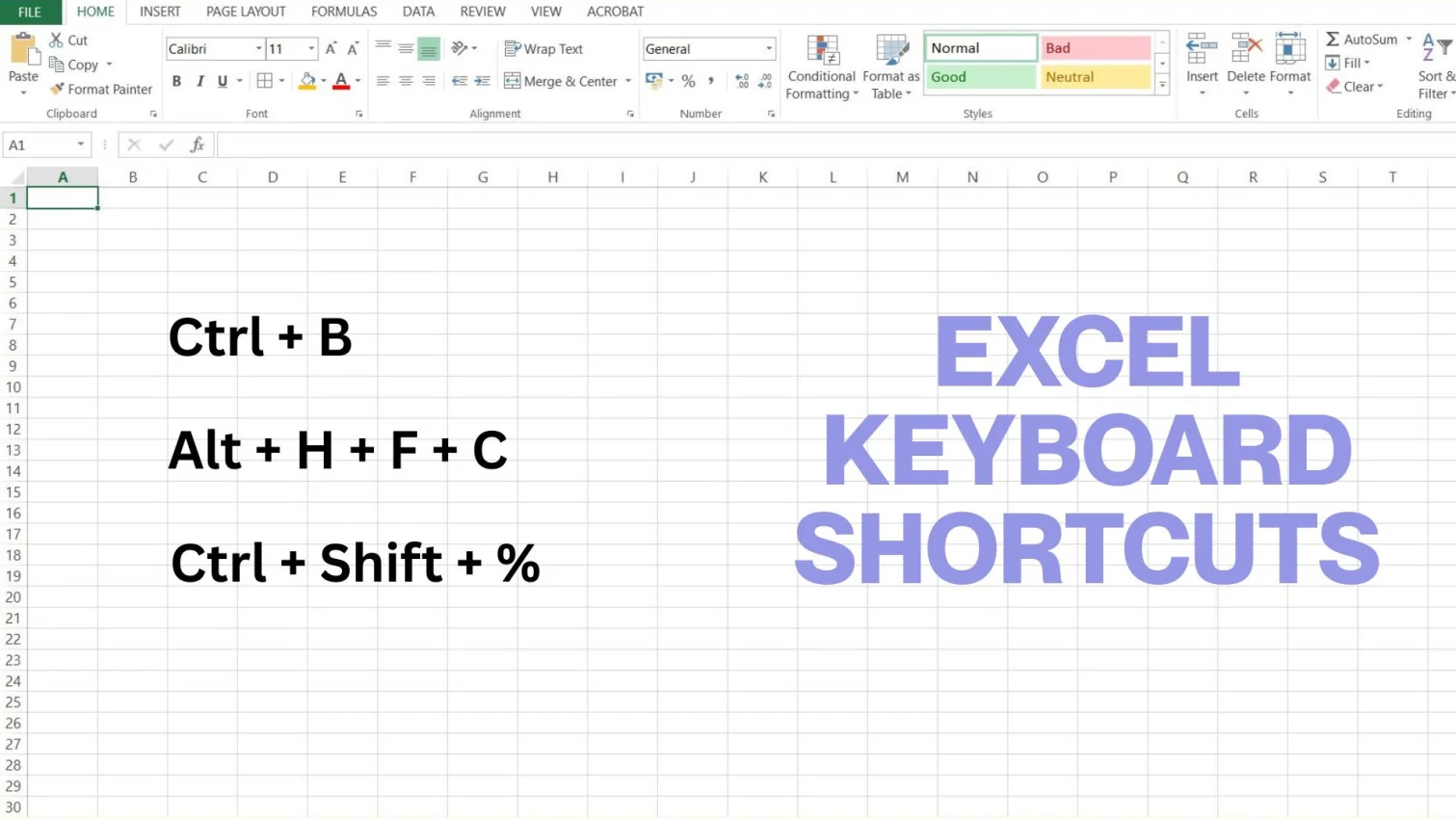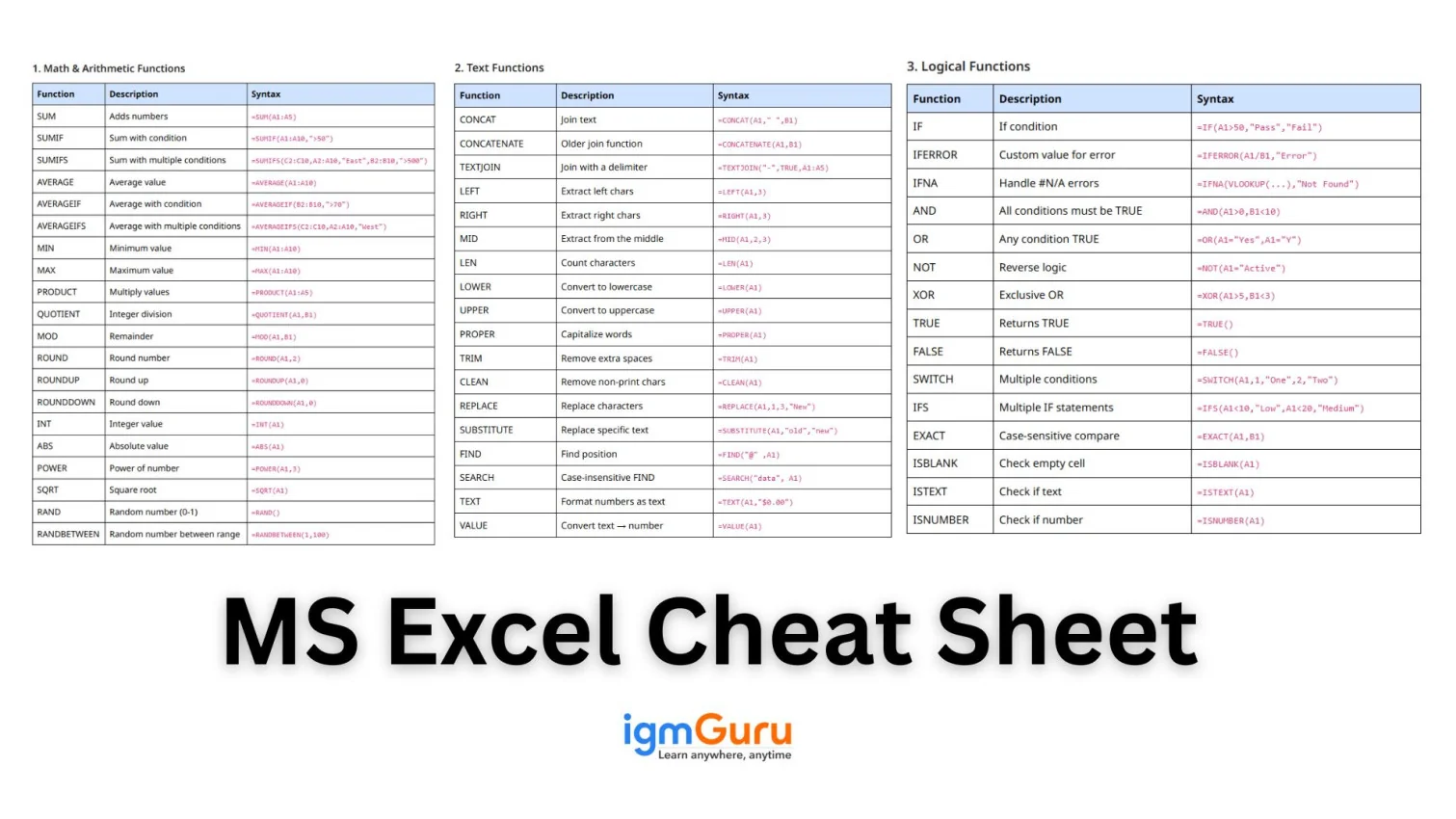
Microsoft Excel is one of the most powerful tools for organizing, analyzing, and visualizing data. Whether you are a beginner working on your first spreadsheet or a professional handling complex datasets, Excel’s functions and formulas can boost your productivity and accuracy. This Excel cheat sheet will help you recall the most commonly used Excel functions quickly and clearly.
This Excel cheat sheet is designed for:
Related Article: Excel Interview Questions
In this Excel cheat sheet, I will give a structured view of essential functions across categories like Math, Text, Logical, Lookup, Date & Time, and Statistical functions. Let’s dive in!
| Function | Description | Syntax |
|---|---|---|
| SUM | Adds numbers | =SUM(A1:A5) |
| SUMIF | Sum with condition | =SUMIF(A1:A10,">50") |
| SUMIFS | Sum with multiple conditions | =SUMIFS(C2:C10,A2:A10,"East",B2:B10,">500") |
| AVERAGE | Average value | =AVERAGE(A1:A10) |
| AVERAGEIF | Average with condition | =AVERAGEIF(B2:B10,">70") |
| AVERAGEIFS | Average with multiple conditions | =AVERAGEIFS(C2:C10,A2:A10,"West") |
| MIN | Minimum value | =MIN(A1:A10) |
| MAX | Maximum value | =MAX(A1:A10) |
| PRODUCT | Multiply values | =PRODUCT(A1:A5) |
| QUOTIENT | Integer division | =QUOTIENT(A1,B1) |
| MOD | Remainder | =MOD(A1,B1) |
| ROUND | Round number | =ROUND(A1,2) |
| ROUNDUP | Round up | =ROUNDUP(A1,0) |
| ROUNDDOWN | Round down | =ROUNDDOWN(A1,0) |
| INT | Integer value | =INT(A1) |
| ABS | Absolute value | =ABS(A1) |
| POWER | Power of number | =POWER(A1,3) |
| SQRT | Square root | =SQRT(A1) |
| RAND | Random number (0-1) | =RAND() |
| RANDBETWEEN | Random number between range | =RANDBETWEEN(1,100) |
Related Article: Excel MCQs for Interview Preparation
| Function | Description | Syntax |
|---|---|---|
| CONCAT | Join text | =CONCAT(A1," ",B1) |
| CONCATENATE | Older join function | =CONCATENATE(A1,B1) |
| TEXTJOIN | Join with a delimiter | =TEXTJOIN("-",TRUE,A1:A5) |
| LEFT | Extract left chars | =LEFT(A1,3) |
| RIGHT | Extract right chars | =RIGHT(A1,3) |
| MID | Extract from the middle | =MID(A1,2,3) |
| LEN | Count characters | =LEN(A1) |
| LOWER | Convert to lowercase | =LOWER(A1) |
| UPPER | Convert to uppercase | =UPPER(A1) |
| PROPER | Capitalize words | =PROPER(A1) |
| TRIM | Remove extra spaces | =TRIM(A1) |
| CLEAN | Remove non-print chars | =CLEAN(A1) |
| REPLACE | Replace characters | =REPLACE(A1,1,3,"New") |
| SUBSTITUTE | Replace specific text | =SUBSTITUTE(A1,"old","new") |
| FIND | Find position | =FIND("@" ,A1) |
| SEARCH | Case-insensitive FIND | =SEARCH("data", A1) |
| TEXT | Format numbers as text | =TEXT(A1,"$0.00") |
| VALUE | Convert text → number | =VALUE(A1) |
| Function | Description | Syntax |
|---|---|---|
| IF | If condition | =IF(A1>50,"Pass","Fail") |
| IFERROR | Custom value for error | =IFERROR(A1/B1,"Error") |
| IFNA | Handle #N/A errors | =IFNA(VLOOKUP(...),"Not Found") |
| AND | All conditions must be TRUE | =AND(A1>0,B1<10) |
| OR | Any condition TRUE | =OR(A1="Yes",A1="Y") |
| NOT | Reverse logic | =NOT(A1="Active") |
| XOR | Exclusive OR | =XOR(A1>5,B1<3) |
| TRUE | Returns TRUE | =TRUE() |
| FALSE | Returns FALSE | =FALSE() |
| SWITCH | Multiple conditions | =SWITCH(A1,1,"One",2,"Two") |
| IFS | Multiple IF statements | =IFS(A1<10,"Low",A1<20,"Medium") |
| EXACT | Case-sensitive compare | =EXACT(A1,B1) |
| ISBLANK | Check empty cell | =ISBLANK(A1) |
| ISTEXT | Check if text | =ISTEXT(A1) |
| ISNUMBER | Check if number | =ISNUMBER(A1) |
Also Explore: How to Create a Dashboard in Excel?
| Function | Description | Syntax |
|---|---|---|
| VLOOKUP | Vertical lookup | =VLOOKUP(A2,D2:F10,2,FALSE) |
| HLOOKUP | Horizontal lookup | =HLOOKUP(A1,A1:F2,2,FALSE) |
| XLOOKUP | Modern lookup | =XLOOKUP(A2,A:A,B:B) |
| LOOKUP | Look up value | =LOOKUP(10,A1:A10,B1:B10) |
| INDEX | Return value at position | =INDEX(A1:C10,3,2) |
| MATCH | Find index of value | =MATCH("John",A1:A10,0) |
| OFFSET | Dynamically reference range | =OFFSET(A1,1,1) |
| INDIRECT | Convert text → reference | =INDIRECT("A"&B1) |
| CHOOSE | Pick value by index | =CHOOSE(2,"A","B","C") |
| FILTER | Filter dynamic data | =FILTER(A2:B20,A2:A20="East") |
| SORT | Sort range | =SORT(A2:B10,1,TRUE) |
| SORTBY | Sort by another column | =SORTBY(A2:C10,C2:C10) |
| UNIQUE | Remove duplicates | =UNIQUE(A2:A20) |
| TRANSPOSE | Convert rows ↔ columns | =TRANSPOSE(A1:C3) |
| COLUMN | Return column number | =COLUMN(A1) |
| ROW | Return row number | =ROW(A1) |
| ADDRESS | Get cell address | =ADDRESS(3,4) |
| AREAS | Count areas in reference | =AREAS((A1,B1,C1)) |
Related Article: XLOOKUP vs VLOOKUP
| Function | Description | Syntax |
|---|---|---|
| TODAY | Current date | =TODAY() |
| NOW | Current date & time | =NOW() |
| DATE | Create date | =DATE(2025,1,1) |
| TIME | Create time | =TIME(10,30,0) |
| DAY | Extract day | =DAY(A1) |
| MONTH | Extract month | =MONTH(A1) |
| YEAR | Extract year | =YEAR(A1) |
| HOUR | Extract hour | =HOUR(A1) |
| MINUTE | Extract minute | =MINUTE(A1) |
| SECOND | Extract second | =SECOND(A1) |
| WEEKDAY | Day number | =WEEKDAY(A1) |
| EOMONTH | End of month | =EOMONTH(A1,1) |
| NETWORKDAYS | Working days | =NETWORKDAYS(A1,B1) |
| WEEKNUM | Week number | =WEEKNUM(A1) |
| DATEDIF | Difference between dates | =DATEDIF(A1,B1,"M") |
Related Article: How to Use Power Query in Excel?
| Function | Description | Syntax |
|---|---|---|
| COUNT | Count numbers | =COUNT(A1:A10) |
| COUNTA | Count non-empty | =COUNTA(A1:A10) |
| COUNTBLANK | Count blanks | =COUNTBLANK(A1:A10) |
| COUNTIF | Count if condition | =COUNTIF(A1:A10,"Yes") |
| COUNTIFS | Multiple conditions | =COUNTIFS(A:A,"East",B:B,">500") |
| SUMPRODUCT | Conditional sum | =SUMPRODUCT(A1:A10,B1:B10) |
| AVERAGEA | Average incl. text | =AVERAGEA(A1:A10) |
| MEDIAN | Median value | =MEDIAN(A1:A10) |
| MODE | Most common value | =MODE(A1:A10) |
| STDEV | Standard deviation | =STDEV(A1:A10) |
| VAR | Variance | =VAR(A1:A10) |
| PERCENTILE | Percentile value | =PERCENTILE(A1:A10,0.9) |
| QUARTILE | Quartile value | =QUARTILE(A1:A10,1) |
| LARGE | K-th largest value | =LARGE(A1:A10,2) |
| SMALL | K-th smallest | =SMALL(A1:A10,2) |
| Function | Description | Syntax |
|---|---|---|
| PMT | Loan payment | =PMT(rate,nper,pv) |
| IPMT | Interest payment | =IPMT(rate,per,nper,pv) |
| PPMT | Principal payment | =PPMT(rate,per,nper,pv) |
| FV | Future value | =FV(rate,nper,pmt,pv) |
| PV | Present value | =PV(rate,nper,pmt) |
| NPV | Net present value | =NPV(rate,values) |
| IRR | Internal rate of return | =IRR(A1:A10) |
| RATE | Interest rate | =RATE(nper,pmt,pv) |
| CUMIPMT | Cumulative interest | =CUMIPMT(rate,...) |
| CUMPRINC | Cumulative principal | =CUMPRINC(rate,...) |
Related Articles- How to Compare Two Columns in Excel: A Step-by-Step Guide
The use of formulas and functions should be precise; otherwise, they can create errors. These errors are an obstacle to perfect data analysis. Therefore, you need to know these errors and solutions, as anyone can make mistakes using multiple formulas at the same time. Here are some of them:
| Error | Meaning | Solution |
|---|---|---|
#DIV/0! |
You tried dividing a number by 0 or by an empty cell. | Replace 0 with another value, or use =IFERROR(formula,0) to avoid error. |
#VALUE! |
Invalid input type — text used in place of a number. | Check and clean text values, and convert text to numbers. |
#REF! |
Cell reference is broken due to a deleted row/column. | Reconnect or replace missing references, and avoid deleting dependent cells. |
#NAME? |
Excel doesn’t recognize the formula name or text. | Check spelling, add missing quotes, and ensure add-ins/functions are enabled. |
#NUM! |
Invalid numeric value or impossible calculation. | Use a valid number range, fix negative square roots or very large values. |
#N/A |
The lookup function can’t find the matching value. | Ensure lookup value exists, or use IFNA to handle missing values. |
#NULL! |
Incorrect range separator or invalid cell intersection. | Use a comma (,) or colon (:) correctly in range references. |
#SPILL! |
The formula result can't fit because the cells are not empty. | Clear surrounding cells or change the reference range. |
#CALC! |
A dynamic array or calculation problem occurred. | Check formula logic, and remove circular dependencies or invalid references. |
######## |
The column is too narrow to show the result. | Expand column width or change number formatting. |
| Error/Issue | Meaning | Solution |
|---|---|---|
| Numbers stored as text | The formula calculation doesn't work on these cells. | Use, Text to Columns, add =VALUE(), or convert formatting to Number. |
| Trailing/extra spaces | Lookup mismatches and incorrect comparisons. | Use =TRIM(text) to clean spaces. |
| Date not recognized | Excel is unable to read dates due to a format mismatch. | Change date format, use DATEVALUE() or adjust region settings. |
| Hidden rows/columns | Data appears missing but is only hidden. | Unhide using Format → Hide/Unhide. |
| Circular reference | The formula refers back to itself, causing a loop. | Remove self-reference or enable iterative calculation with caution. |
| Large Excel File Size | The file becomes slow or crashes. | Remove unused formatting, delete empty rows, compress images, or use Power Query. |
Microsoft Excel 365 has introduced several modern formulas designed to improve automation, text processing, dynamic reporting, and data analysis. These newer functions reduce the need for complex nested formulas, helper columns, and manual spreadsheet cleanup. They are especially useful for business reporting, dashboard creation, data transformation, and large-scale spreadsheet automation.
Many of these functions work with dynamic arrays, which means the results automatically spill into adjacent cells and update whenever the source data changes. This makes modern Excel formulas faster, cleaner, and easier to maintain compared to older spreadsheet methods.
| Formula | Purpose | Example |
|---|---|---|
| TEXTSPLIT | Split text using a delimiter | =TEXTSPLIT(A1,",") |
| TEXTBEFORE | Extract text before a character | =TEXTBEFORE(A1,"@") |
| TEXTAFTER | Extract text after a character | =TEXTAFTER(A1,"@") |
| TAKE | Return selected rows or columns | =TAKE(A1:C20,5) |
| DROP | Remove rows or columns dynamically | =DROP(A1:C20,2) |
| CHOOSECOLS | Select specific columns | =CHOOSECOLS(A1:F10,1,3,5) |
| TOCOL | Convert arrays into a single column | =TOCOL(A1:C5) |
| TOROW | Convert arrays into a single row | =TOROW(A1:C5) |
| HSTACK | Combine arrays horizontally | =HSTACK(A1:A5,C1:C5) |
| VSTACK | Combine arrays vertically | =VSTACK(A1:A5,C1:C5) |
| WRAPROWS | Wrap values into rows | =WRAPROWS(A1:A10,3) |
| WRAPCOLS | Wrap values into columns | =WRAPCOLS(A1:A10,3) |
| REGEXEXTRACT | Extract values using patterns | =REGEXEXTRACT(A1,"[0-9]+") |
| REGEXREPLACE | Replace text using patterns | =REGEXREPLACE(A1,"[0-9]","") |
| REGEXTEST | Validate text patterns | =REGEXTEST(A1,"^[A-Z]") |
| GROUPBY | Create grouped summaries | =GROUPBY(A2:A20,B2:B20,SUM) |
| PIVOTBY | Create formula-based pivots | =PIVOTBY(A2:A20,B2:B20,C2:C20,SUM) |
| PY | Run Python inside Excel | =PY("sum([10,20,30])") |
| IMPORTCSV | Import CSV files dynamically | =IMPORTCSV("sales.csv") |
| IMPORTTEXT | Import text files dynamically | =IMPORTTEXT("report.txt") |
Important Note: Most of these formulas are available only in Microsoft Excel 365 and newer Excel versions. Some features may require the latest Microsoft 365 updates.
Modern Excel is no longer limited to traditional spreadsheets and formulas. In 2026, Microsoft Excel includes AI-powered capabilities that help users automate repetitive tasks, analyze large datasets, generate formulas, and create reports more efficiently. These features are mainly available through Microsoft Copilot and advanced Excel 365 integrations.
AI-powered Excel tools are especially useful for beginners who struggle with complex formulas, as well as business professionals who need faster reporting and data analysis workflows. Instead of manually creating every formula or chart, users can now describe tasks in natural language and let Excel generate suggestions automatically.
| AI Feature | What It Does | Benefit |
|---|---|---|
| Copilot Formula Suggestions | Generates formulas using natural language prompts | Reduces manual formula writing |
| AI Data Analysis | Analyzes trends, summaries, and insights automatically | Speeds up reporting |
| AI Chart Recommendations | Suggests suitable charts for datasets | Improves visualization quality |
| Python in Excel | Runs Python code directly inside worksheets | Supports advanced analytics |
| Smart Formula Auto-Complete | Predicts formulas and arguments while typing | Improves productivity |
| Automated Data Cleaning | Detects formatting and data consistency issues | Reduces manual cleanup work |
| Natural Language Queries | Users can ask Excel questions in plain English | Makes advanced analysis easier |
AI features in Excel are becoming increasingly important for modern business reporting, dashboard creation, finance analysis, marketing analytics, and operational reporting. However, understanding traditional Excel formulas is still essential because AI-generated outputs should always be verified for accuracy and business logic.
As Microsoft continues integrating AI into Excel, the platform is evolving from a traditional spreadsheet tool into a more intelligent data analysis and automation system for both beginners and advanced users.
Excel becomes incredibly powerful once you understand how functions work and how to combine them. This cheat sheet gives you a quick reference to the most-used formulas across categories, helping you work smarter, save time, and make your data more meaningful. Keep practicing these examples, and very soon, writing formulas will feel effortless.
Explore Our Detailed Guides based on Excel
Start with simple functions like SUM, AVERAGE, and IF. Practice them daily, and use cheat sheets to remember syntax.
SUM, IF, VLOOKUP, COUNTIF, and CONCAT are the essential ones you’ll use all the time.
Yes! Most Excel formulas work exactly the same in Google Sheets, except for a few advanced functions.
Course Schedule
| Course Name | Batch Type | Details |
| Advanced Excel Training | Every Weekday | View Details |
| Advanced Excel Training | Every Weekend | View Details |