Today, when we look around, the world is filled with attractive and sleek graphical interfaces. In all this, there is a tool present which looks simple but is powerful- Command Prompt, also known as CMD.
While fixing a system error, you have probably run into a black screen with white text and a blinking cursor. We can all agree that at first sight it may look outdated, right?
But the truth is, CMD today is far from dead. In fact, it is one of those underrated yet powerful tools that is still used by developers, IT professionals, ethical hackers, and also by college students who want to level up their tech skills.
Whether you are trying to automate boring tasks, fix system issues, or simply understand how your Windows PC actually works below the surface, learning CMD Commands is a superpower you did not know you needed.
For that, in this blog, you will discover what exactly CMD is, why it still matters today, basic and advanced CMD commands, easy ways to open and use Command Prompt efficiently, etc. Let's dive in.
CMD means Command Prompt. Technically, it is also known as cmd.exe, which is the executable file that launches the Command Prompt in Windows. It is like a command-line interface (CLI) of the Windows operating system. This is a space where you give commands via typing, meaning there is no need to use your mouse. When you open CMD, you will see a plain black window where you can type white-text commands and your system executes them instantly. No loading, no lags, it gives you direct system-level access.
You might be wondering that when everything can be done with a mouse, why should I bother with CMD?
It can be very helpful when your PC refuses to boot, you need to process thousands of files at once, or want to run programs silently in the background with one command.
CMD is often underestimated, but once you start learning the right commands it will help you to level up into a true Windows power user. Are you now wondering regarding your first step? Let's start it by opening CMD together in the next section.
Before you dive into the powerful CMD commands, you must start with the basics of how to open the Command Prompt. Windows gives you multiple ways to access it, and once you know them, you will never waste time searching again. The two most popular ways are:
Always run as administrator when you perform system level actions like disk checks, network resets, etc.
It is the quickest method to open CMD, mainly if you are already working on a keyboard heavy task.
With CMD at your fingertips, you are now ready to start exploring the most useful and powerful commands every Windows user should know. Let's move to the next section where the must know basic CMS commands are explained.
When you want to dive into advanced command-line operations and perform so many productive tasks with ease, it is important to master the foundational commands. These commands help you in navigating, inspecting, and managing files and directories, by giving you full control over your system without the use of mouse or graphical interface.
Command:
| dir |
Explanation:
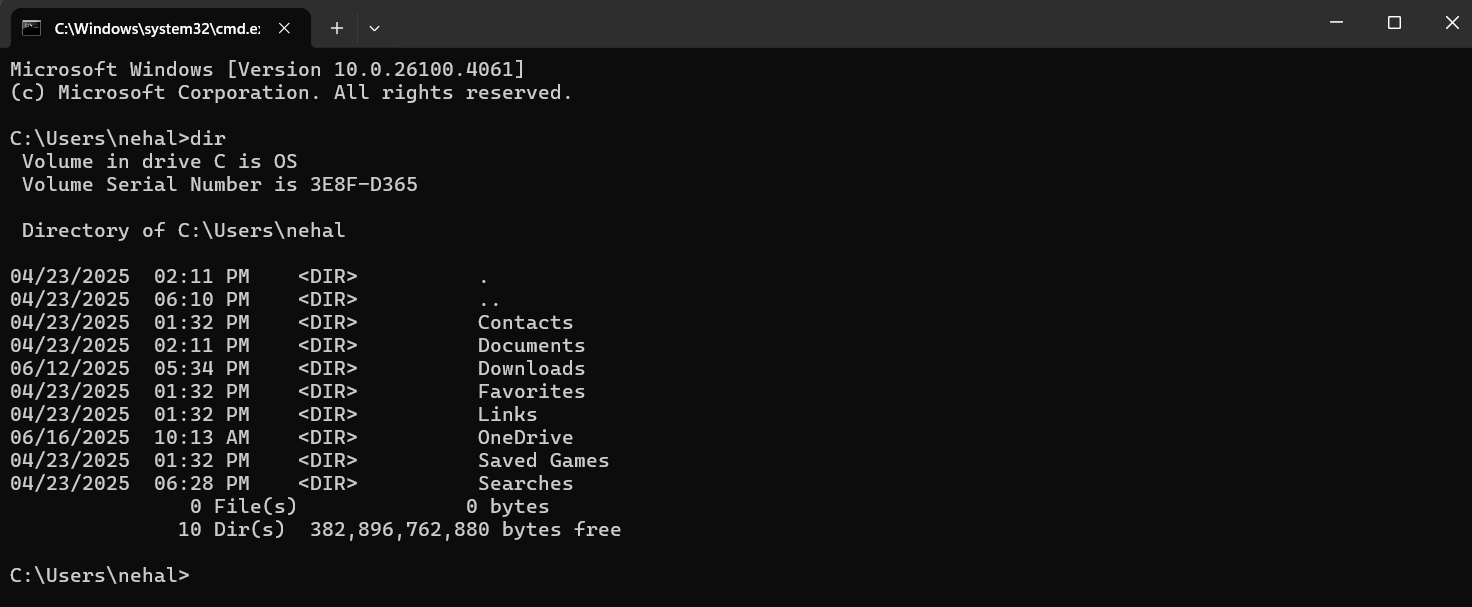
This command displays a list of files and folders in the current directory. It is like opening a folder and seeing what is inside that, just in text format. You can also view file names, their sizes, and the date when they were last modified.
Command:
| cd foldername |
Explanation:
It stands for Change Directory and is used to navigate between folders. It lets you move deeper into your file system.
Command:
| cd.. |
Explanation:
It helps you to move one step back in the folder structure. If you are currency in a nested folder, this command will help you to go back to its parent folder. It is like a back button for folders. For instance, if you are in C:\Users\YourName\Documents, this will take you to C:\Users\YourName.
Command:
| cls |
Explanation:
The cls command helps you to clear all previous commands and outputs on the CMD screen, and will give you a fresh window. It is super helpful when things get cluttered and you want it all clean. Also, it does not delete any files or history.
Command:
| exit |
Explanation:
This command helps you to close the Command Prompt window. It immediately ends the CMD session and brings you back to the desktop or previous window.
Command:
| echo Hello, new CMD users! |

Explanation:
The echo command is used to display messages or output text to the screen. It is commonly used in scripts to print custom messages, variables, or progress updates. In the above example, it would simply show "Hello, new CMD users!" in the Command Prompt window.
Command:
| help |
Explanation:
This command shows you a list of available commands in CMD with their short descriptions. You can also type help commandname to get details about any specific command. This is perfect for beginners or for quick reference.
Command:
| ver |

Explanation:
This command shows the version of Windows, which you are currently using. It is helpful when you need to verify your operating system version before installing software or when troubleshooting issues that depend on system compatibility.
Command:
| time |

Explanation:
This command displays the current system time and also allows you to change it. This is useful for testing time-based scripts or resetting the system clock.
Command:
| date |

Explanation:
It displays the current date and lets you update it. It is similar to the time command, date displays the current system date and allows you to update it. You may need admin rights to make changes.
These are all the basic commands that are useful for navigating the CMD environment efficiently. As you grow more comfortable with these, you will find that using CMD can be faster and more powerful than graphical interfaces for many tasks.
Now, as you have gained the knowledge of foundational commands. Let's move further and explore how you can manage files and folders using CMD.
These commands help you create, rename, delete, and manage files/folders directly from the command line. It is great for quick actions, automation, and even fixing system issues.
Command:
| mkdir NewFolder |
Explanation:
The mkdir command is used to create a new folder in your current working directory. It is also helpful when you want to set up a new folder structure quickly. You can use md (short for make directory).
Command:
| rmdir FolderName |
Explanation:
This command is used to delete a folder. But the folder must be empty first. If it is not, CMD will throw an error. However, you want to delete a folder with all its files and subfolders, use this:
| rmdir /s FolderName |
You can also add /q for "quiet mode" to skip confirmation prompts:
| rmdir /s /q FolderName |
This made the cleanups easy. Also, perfect when you are done with a project or want to declutter your folders.
Command:
| del filename.txt |
Explanation:
This command deletes a file from the current directory. You can add /f to force delete a read-only file, and /q for quiet mode (no confirmation).
| del /f /q mynotes.txt |
But always remember that there is no recycle bin here, therefore once a file is gone, then it is gone forever.
Command:
| rename oldfile.txt newfile.txt |
Explanation:
This command helps you to rename files and sometimes folders. ren is the short version of this command.
Command:
| copy source.txt destination.txt |
Explanation:
This helps you to copy a file from one location to another. It also works for copying files into different folders. You can also keep a backup of your assignment before editing or sending it to another location without dragging files manually. You can do it with:
| copy C:\Docs\report.docx D:\Backup\ |
Command:
| xcopy C:\Folder D:\Backup /s /e |
Explanation:
This is an advanced version of copy. It copies entire folders and subfolders, including empty ones. You can use /s to copy non-empty folders, /e to include empty ones too. This is best for transferring entire projects or directories.
Command:
| move file.txt D:\Folder |
Explanation:
It helps you to move files from one location to another. You can also use it to rename files. It is faster than dragging it manually.
Command:
| tree |
Explanation:
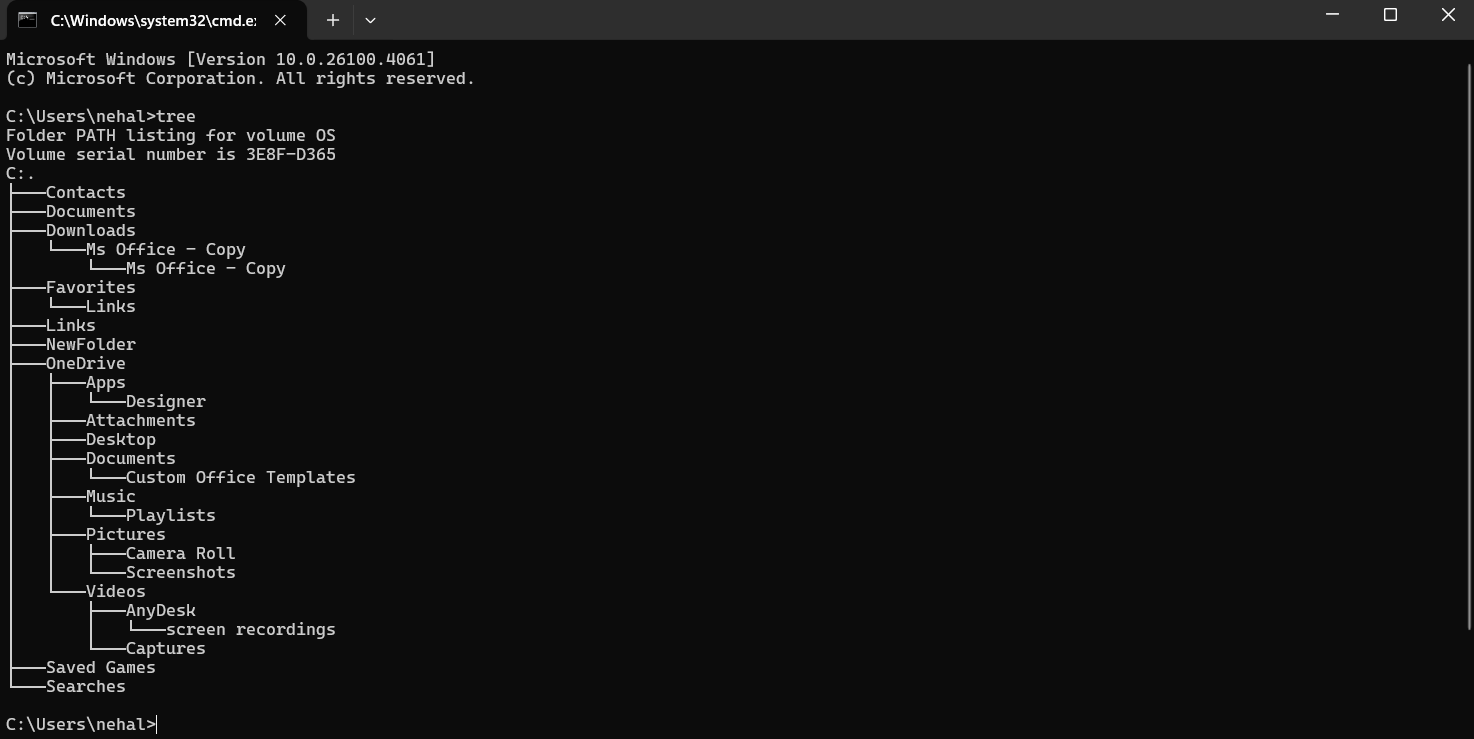
This command displays the folder structure (directories and subdirectories) of the current path in a tree format. Additionally, it also visualizes the layout of your folders, especially useful in large projects.
Command:
| attrib +r file.txt |
Explanation:
This command helps you to change file attributes like read-only, hidden, system, etc. You can use + to add an attribute and - to remove it.
Command:
| fc file1.txt file2.txt |
Explanation:
It stands for File Compare. It helps to compare the contents of two files and shows the differences. Also, it is great for checking changes in code, documents, or logs. These commands help you manage your digital space efficiently, as it is faster than using a mouse, especially when handling lots of files or working remotely.
This category contains powerful commands to check IP addresses, test internet connections, monitor your network, and get details about your Windows system. It is perfect for both basic troubleshooting and advanced diagnostics.
Command:
| ipconfig |
Explanation:
This command displays your system's current IP address, subnet mask, and default gateway (your Wi-Fi router). It is like a mini map of your network. Additionally, it is great when Wi-FI is not working properly or websites are not loading.
To refresh the IP or DNS, use:
To disconnect your IP you can use:
| ipconfig /release |
To get a new IP you can use:
| ipconfig /renew |
To clear all old DNS data (fix site loading errors) you can use:
| ipconfig /flushdns |
Command:
| ping google.com |
Explanation:
This command sends a signal to a website/server and checks if it is reachable. It also shows how fast the signal travels and uses it to check if your internet or a particular site is down.
Command:
| tracert google.com |
Explanation:
This command traces the journey of your data packets to a website, by also showing each server (hop) they pass through. It is like Google Maps but for your internet signal.
Command:
| Nslookup google.com |
Explanation:
This command reveals the IP address behind a domain name. It also shows DNS-related info and is used when sites are not loading but the internet is working.
Command:
| netstat |
Explanation:
This command displays all active internet connections on your system. This can even help detect malware or suspicious apps silently sending/receiving data. Additionally, it uses netstat -an to see ports and IPs.
Command:
| systeminfo |
Explanation:
This gives a full report of your computer's specs from Windows version to BIOS info, RAM, processor, updates, etc. It is great for checking your laptop specs before installing heavy software or updating Windows.
Command:
| tasklist |
Explanation:
This command lists all currently running tasks and processes (like Task Manager). It is used to monitor background processes directly in CMD.
Command:
| taskkill /IM notepad.exe /F |
Explanation:
It kills or force closes a running program using its name or process ID and uses /F to force close it. This command is perfect when a program freezes and Task Manager fails.
Command:
| hostname |
Explanation:
The use of this command displays the name of your computer (host machine) and helps when working in networks or remote desktop connections.
Command:
| set |
Explanation:
This command helps you to display all environment variables of the system. You can also create your own using:
| set VAR_NAME=value |
It is used in programming, scripting, or setting temporary paths.
These all commands are like superpowers for troubleshooting and system management. They are essential for everyone who is into tech, networking, ethical hacking, or IT support. Up next, let us explore some more CMD commands for system power and user controls.
These CMD commands give you direct control over your system's power functions and user account management. Whether you want to quickly shut down your PC, restart, lock the screen or you wish to manage users, these commands are super useful for those especially who are handling lab systems, multiple users, or just exploring system automation.
Command:
| shutdown /s /t 0 |
Explanation:
This command shuts down your computer immediately. The /s stands for shutdown and /t 0 is for the action to happen without any delay.
Command:
| shutdown /r /t 0 |
Explanation:
This command restarts your system instantly. It is helpful when you install software or updates that require a reboot.
Command:
| shutdown /1 |
Explanation:
This command logs off the current user without shutting down or restarting the system. It is useful for quickly switching users.
Command:
| DISM /Online /Cleanup-Image /RestoreHealth |
Explanation:
DISM is a powerful command-line tool used to repair Windows images. It can fix more severe corruption problems by downloading healthy versions of files from Windows Update. It is like an advanced troubleshooting step for persistent system issues, often used when sfc /scannow doesn't resolve the problem.
Command:
| powercfg /batteryreport |

Explanation:
This command creates a detailed battery performance report in HTML format. It helps laptop users monitor battery health and usage.
Command:
| net user |
Explanation:
The command net user displays a list of all user accounts on the system. It is useful for checking active profiles.
Command:
| net user username /add |
Explanation:
It creates a new local user account and replaces the username with the name of the new account you want to add.
Command:
| net user username /delete |
Explanation:
This command removes a specified user account from the system and replaces username with the account name you want to delete.
Command:
| control userpasswords2 |
Explanation:
It launches a user account management window directly from CMD and also allows you quick access to account-related settings.
Command:
| net localgroup administrators username /add |
Explanation:
This command adds the specified user to the administrator group and by giving them elevated system privileges.
These commands offer powerful ways to manage both your device and its users. However, if you are someone who loves speed and shortcuts, then the next section is where things for you will get more interesting. Let's explore some useful CMD tricks and shortcuts which you will love showing off.
Once you're comfortable with the basics, these five commands are the ones IT professionals and power users rely on most. They handle everything from repairing corrupted system files to managing disk partitions and syncing large folder structures. Note that most of these require running CMD as Administrator.
Category: System Repair | ⚠ Requires Admin
Explanation:
SFC stands for System File Checker. It scans all protected Windows system files and automatically replaces corrupted or missing ones with a cached copy. This is the first command to run when Windows starts behaving unexpectedly — random crashes, missing DLL errors, or features that stop working.
Command:
| sfc /scannow |
Variants:
| sfc /verifyonly |
Tip: Use sfc /verifyonly if you want to scan without making any changes. If sfc reports it couldn't fix certain files, follow up with DISM (already covered above) and then re-run sfc.
Category: Disk Health | ⚠ Requires Admin
Explanation:
CHKDSK (Check Disk) scans your hard drive or SSD for file system errors, bad sectors, and lost clusters. It can also attempt to fix the errors it finds. Unlike sfc which targets system files, chkdsk targets the disk itself — so both tools serve different purposes and are often used together.
Command:
| chkdsk C: |
Variants:
| chkdsk C: /f
chkdsk C: /r chkdsk C: /f /r |
Tip: /f fixes errors on the disk. /r locates bad sectors and recovers readable data. Since the C: drive is always in use, Windows will ask you to schedule the scan at next restart — just press Y and reboot.
Category: Network | ⚠ Requires Admin
Explanation:
NETSH (Network Shell) is a powerful network configuration tool built into Windows. It lets you reset network settings, view saved Wi-Fi passwords, manage firewall rules, and configure network interfaces — all from CMD. It is one of the most versatile network commands available.
Common Uses:
Tip: The second command reveals your saved Wi-Fi password under "Key Content" in the output. The winsock reset and ip reset commands are the go-to fix for internet connectivity issues that ipconfig /flushdns doesn't resolve — restart your PC after running them.
Category: Disk Management | ⚠ Requires Admin
Explanation:
DISKPART is a powerful disk partitioning utility that lets you create, delete, format, and manage disk partitions. It is useful for setting up a new drive, wiping a USB drive, or recovering a disk that Windows Explorer can't recognize. Be very careful with this one — changes are immediate and irreversible.
Basic Workflow:
| diskpart
list disk select disk 1 list partition clean |
Tip: Always run list disk first to confirm which disk number is which before selecting. The clean command removes all partitions and data from the selected disk — double-check you've selected the right one before proceeding.
Category: File Transfer
Explanation:
ROBOCOPY (Robust File Copy) is an advanced file copying tool that far exceeds what the regular copy or xcopy commands can do. It can mirror entire folder structures, resume interrupted transfers, copy file permissions, and skip already-copied files. It is the preferred tool for large backups and project migrations.
Command:
| robocopy C:\Source D:\Destination /e |
Variants:
| robocopy C:\Source D:\Destination /e /z /log:backup.log
robocopy C:\Source D:\Destination /mir |
Tip: /e copies all subdirectories, including empty ones. /z enables restartable mode (resumes if interrupted). /mir mirrors the source — it also deletes files in the destination that no longer exist in the source, so use it with care. /log:filename saves the full output to a log file.
These commands are the building blocks of batch scripting in CMD. Each one controls the flow of a .bat file, letting you build automated sequences, conditional logic, and loops without any external tools. These are the commands that separate casual CMD users from true Windows power users.
Command:
| call script.bat |
Explanation:
The call command runs another batch file from within the current batch file and then returns control back to the original script once the called script finishes. Without call, CMD would exit the first script entirely when it encounters the second one.
Example:
| call backup.bat call cleanup.bat |
This runs backup.bat first, waits for it to finish, then runs cleanup.bat.
Command:
| goto labelname |
Explanation:
The goto command jumps execution to a specific label in the batch file. Labels are defined with a colon prefix (for example, :labelname). It is used to create manual loops or skip sections of a script based on conditions.
Example:
| goto end echo This line will never run :end echo Script finished |
Command:
| if condition command |
Explanation:
The if command adds conditional logic to your batch scripts. It checks a condition and only runs the specified command if the condition is true. You can use it to compare strings, check whether a file exists, or evaluate error levels from previous commands.
Common variants:
| if exist filename.txt echo File found if not exist filename.txt echo File missing if %errorlevel%==0 echo Last command succeeded if "%var%"=="hello" echo Variable matched |
Command:
| for %i in (set) do command |
Explanation:
The for command loops through a set of items and runs a command for each one. It works with files, folders, numbers, and strings. When using it inside a batch file, replace %i with %%i.
Common variants:
| for %i in (*.txt) do echo %i for /l %i in (1,1,5) do echo %i for /d %i in (*) do echo %i |
The first example lists all .txt files. The second counts from 1 to 5. The third lists all subdirectories in the current folder.
Command:
| pause |
Explanation:
The pause command halts execution of a batch script and displays the message "Press any key to continue...". It is useful when you want the user to read output before the CMD window closes, or when you need a manual checkpoint between two steps in a script.
Command:
| setlocal |
Explanation:
The setlocal command begins a localized environment within a batch script. Any changes made to environment variables after this command are temporary and will not affect the actual system environment once the script ends or when endlocal is called. It is best practice to start every batch script with setlocal.
Command:
| endlocal |
Explanation:
The endlocal command ends the localized environment started by setlocal and restores all environment variables to their previous state. Always use setlocal and endlocal as a pair in every batch script to avoid polluting the system environment with temporary variables.
These commands let you read, write, and delete Windows Registry keys directly from CMD. They are commonly used in IT deployments, system configuration, and advanced troubleshooting. Always run as Administrator and proceed carefully — incorrect registry changes can affect system stability.
Command:
| reg query "HKEY_LOCAL_MACHINE\Software\Microsoft\Windows\CurrentVersion" |
Explanation:
The reg query command reads and displays the contents of a registry key or value. It is the safest registry command since it only reads data and makes no changes. Use it to inspect keys before modifying them.
Common variants:
| reg query HKLM\Software /s reg query "HKCU\Software\Microsoft\Windows\CurrentVersion\Run" |
The /s flag queries all subkeys recursively. The second example shows all programs set to run at startup for the current user.
Command:
| reg add "HKCU\Software\MyApp" /v Setting1 /t REG_SZ /d "Value" /f |
Explanation:
The reg add command creates a new registry key or sets a value inside an existing one. The flags mean: /v is the value name, /t is the data type, /d is the data itself, and /f forces the write without asking for confirmation.
Common data types:
Command:
| reg delete "HKCU\Software\MyApp" /v Setting1 /f |
Explanation:
The reg delete command removes a specific value or an entire key from the registry. Use /v to delete a single value, or /va to delete all values under a key. The /f flag skips the confirmation prompt.
⚠ Warning: Registry deletions are immediate and cannot be undone. Always export a backup first using reg export "KeyPath" backup.reg before making any changes.
These commands let you start, stop, query, and manage Windows services directly from CMD. They are essential for IT troubleshooting, server management, and automated deployments. Most of these require running CMD as Administrator.
Command:
| sc query |
Explanation:
The sc query command lists all currently active Windows services along with their status — running, stopped, or paused. You can also query a specific service by name to check its current state before attempting to start or stop it.
Common variants:
| sc query wuauserv sc query type= all sc queryex servicename |
The first example checks the status of the Windows Update service. type= all includes both running and stopped services. Note the space after type= — it is required syntax.
Command:
| sc start servicename sc stop servicename |
Explanation:
sc start starts a stopped Windows service. sc stop sends a stop signal to a running service. Always use the service's internal name, not its display name. If you are unsure of the internal name, run sc query first and look for the SERVICE_NAME field.
Example:
| sc start wuauserv sc stop wuauserv |
This starts and stops the Windows Update service.
Command:
| net start servicename net stop servicename |
Explanation:
net start and net stop are a fully functional alternative to sc for starting and stopping services. They use the service's display name in quotes if the name contains spaces. Running net start on its own (with no service name) lists all currently running services.
Example:
| net start "Print Spooler" net stop "Print Spooler" |
These commands let you control how Windows finds programs, which applications open specific file types, and how your system environment is configured. They are particularly useful for developers, system administrators, and anyone troubleshooting why a program or file type is not behaving as expected.
Command:
| path |
Explanation:
The path command displays the current PATH environment variable — the list of directories Windows searches when you type a command. You can also use it to temporarily add a new directory to the PATH for the current CMD session.
Example:
| path C:\MyTools;%PATH% |
This adds C:\MyTools to the PATH for the current session. The change is not permanent and resets when CMD is closed.
Command:
| where python |
Explanation:
The where command finds the full file path of any executable that CMD can run. It searches through all directories listed in your PATH and returns the exact location of the program. This is extremely useful when you have multiple versions of a program installed and need to confirm which one CMD is using.
Example:
| where node where git where java |
Command:
| assoc |
Explanation:
The assoc command displays or modifies file extension associations — which file type is linked to which extension. Running it on its own lists all current associations. You can also query or change a specific extension.
Common variants:
| assoc .txt assoc .mp3 assoc .py=Python.File |
The first two examples show which file type is associated with .txt and .mp3. The third example sets the association for .py files.
Command:
| ftype |
Explanation:
The ftype command works alongside assoc. While assoc links a file extension to a file type name, ftype defines which program actually opens that file type. Together, these two commands give you complete control over how Windows opens any file format from the command line.
Example:
| ftype txtfile ftype Python.File="C:\Python39\python.exe" "%1" %* |
The first example shows which program opens text files. The second sets Python files to open with a specific Python installation.
These are not standalone programs but operators and commands that control where CMD output goes and how you filter it. Mastering these transforms CMD from a basic tool into a powerful data processing environment. They work with almost every other command on this list.
Syntax:
| command > filename.txt |
Explanation:
The > operator redirects the output of a command into a file instead of displaying it on screen. If the file already exists, it will be overwritten completely. If it does not exist, CMD creates it automatically.
Example:
| ipconfig > networkinfo.txt systeminfo > specs.txt |
The first example saves your full network configuration to a text file. The second saves your complete system specs.
Syntax:
| command >> filename.txt |
Explanation:
The >> operator works like > but appends the output to the end of an existing file rather than overwriting it. This is useful for logging, where you want to keep building on a record over multiple runs.
Example:
| echo Run started: %date% %time% >> log.txt ipconfig >> log.txt |
Syntax:
| command1 | command2 |
Explanation:
The | (pipe) operator takes the output of one command and feeds it directly as the input to another command. This lets you chain commands together to filter, sort, or process output without saving it to a file first.
Example:
| tasklist | more dir | sort netstat -an | findstr "ESTABLISHED" |
The first example pages through the task list one screen at a time. The second sorts the directory listing alphabetically. The third filters network connections to show only established ones.
Command:
| findstr "searchterm" filename.txt |
Explanation:
The findstr command searches for a specific string inside a file or within piped output and returns only the matching lines. It is the CMD equivalent of Ctrl+F, but usable inside scripts and pipelines. It supports basic regular expressions for more advanced pattern matching.
Common variants:
| findstr "error" logfile.txt findstr /i "warning" logfile.txt findstr /s "TODO" *.txt ipconfig | findstr "IPv4" |
/i makes the search case-insensitive. /s searches all files in subdirectories. The last example pipes ipconfig output and extracts only the IPv4 address line.
These commands cover encryption, disk compression, hardware information, and system diagnostics. They are less frequently used in daily tasks but highly valuable when you need them — particularly for IT audits, system prep, and security checks.
Command:
| cipher /e FolderName |
Explanation:
The cipher command encrypts or decrypts files and folders using Windows' built-in Encrypting File System (EFS). Encrypted files can only be accessed by the user account that encrypted them. It also has a secure-wipe feature that overwrites deleted file space so data cannot be recovered.
Common variants:
| cipher /e FolderName cipher /d FolderName cipher /w:C:\ |
/e encrypts, /d decrypts, and /w securely wipes free space on the specified drive.
Command:
| compact /c /s FolderName |
Explanation:
The compact command enables or disables NTFS compression on files and folders, reducing the disk space they occupy without moving them. It is useful on drives that are running low on space. Compressed files are decompressed automatically when accessed, so there is no change to how you use them.
Common variants:
| compact /c /s FolderName compact /u /s FolderName compact |
/c compresses, /u uncompresses, and /s applies the action to all files in subfolders. Running compact on its own shows the compression status of files in the current directory.
Command:
| wmic cpu get name |
Explanation:
The wmic (Windows Management Instrumentation Command-line) tool queries detailed hardware and software information about your system. It can retrieve CPU model, RAM size, installed software, disk details, BIOS version, and much more — all from CMD.
⚠ Deprecation Note: Microsoft has deprecated wmic in Windows 10 (21H1 and later) and Windows 11. It still works on most systems but may be removed in a future Windows release. For new scripts, Microsoft recommends using PowerShell's Get-WmiObject or Get-CimInstance cmdlets instead.
Common variants:
| wmic cpu get name wmic memorychip get capacity wmic diskdrive get model,size wmic bios get smbiosbiosversion wmic product get name |
These return your CPU name, RAM chip capacity, disk model and size, BIOS version, and a list of all installed software respectively.
Command:
| winver |
Explanation:
The winver command opens a small pop-up window showing your exact Windows version, build number, and update version (for example, Windows 11 Version 23H2 Build 22631). It is faster than navigating through Settings and is useful when a program or support guide asks you to confirm your exact Windows build before proceeding.
Command:
| msinfo32 |
Explanation:
The msinfo32 command opens the System Information window — a full graphical report of your hardware, software environment, components, and system summary. It is more detailed than systeminfo and presents the data in a browsable UI. You can also export the full report to a file for sharing with IT support.
Example:
| msinfo32 /report C:\sysreport.txt |
This exports the full system information report as a text file to the specified path.
Command:
| driverquery |
Explanation:
The driverquery command displays a complete list of all installed device drivers on your system, including their name, type, and date of installation. It is used to audit drivers, check for unsigned drivers, or verify that a specific driver is installed correctly after a hardware change.
Common variants:
| driverquery /v driverquery /fo csv > drivers.csv driverquery | findstr "driver name" |
/v shows verbose output with additional detail. /fo csv exports the list in CSV format, which you can open directly in Excel. The pipe with findstr lets you search for a specific driver by name.
Once you are comfortable with the basic commands, it is time to level up with some cool CMD tricks that can actually make your workflow faster, smarter, and a lot more tech-savvy. These tricks help automate tasks and speed up your actions.
Syntax:
| command1 && command2 |
Explanation:
This command lets you run multiple commands in sequence. The second command only runs if the first one is successful. It is perfect for chaining tasks together.
Example:
| cd Documents && dir |
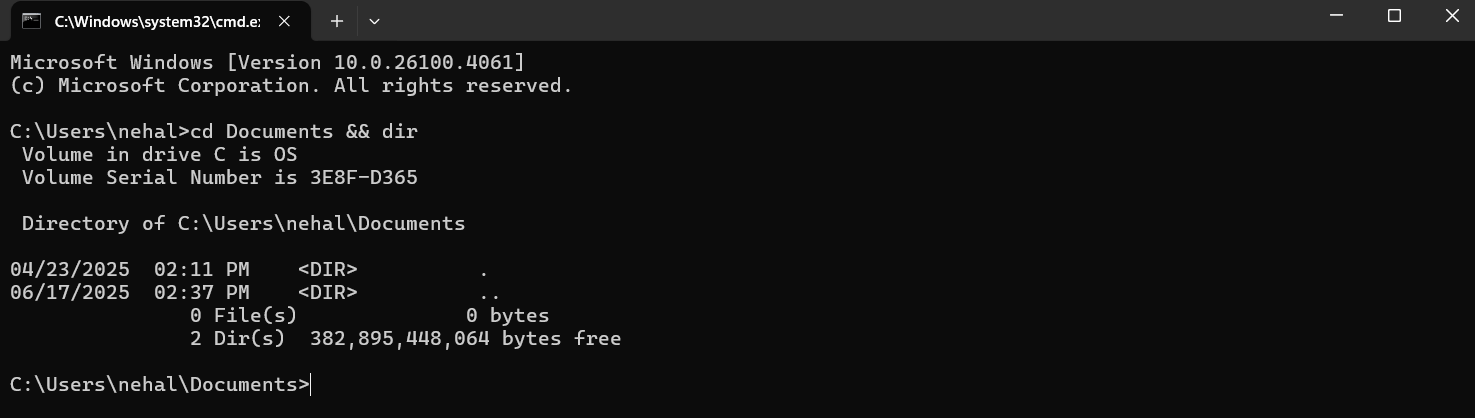
This changes to the Documents directory and lists the files only if the directory change was successful.
Syntax:
| cls |
Explanation:
It clears all text and outputs from the CMD screen. If you are experimenting or debugging and the screen gets cluttered, you can use this to refresh and make things clean.
Syntax:
| cd Doc[TAB] |
Explanation:
When you start typing a file or folder name in CMD and press the TAB key, CMD automatically completes the name or cycles through suggestions.
This is super helpful when the name is long or you're unsure of the exact spelling.
CMD will auto-complete it to:
| cd Documents |
If there are multiple matching names (like "Documents", "Downloads"), pressing TAB repeatedly will cycle through all options. It saves time, prevents typing errors, and feels like a power move once you get used to it.
Explanation:
By pressing F7 on your keyboard, it displays a pop-up menu with all previously used commands in the current session and helps when you forget what you typed earlier.
Syntax:
| title YourText |
Explanation:
This command personalizes your CMD window by changing the title on the title bar.
Example:
| title My Cool CMD Window |
Syntax:
| color [attribute] |
Explanation:
It helps to change the color of the text and background in the CMD window.
Example:
| color 0A |
This gives you black background (0) and green text (A). Additionally, you can use color /? to see all of the options available.
Syntax:
| prompt [text] |
Explanation:
This command changes the appearance of the command prompt. You can use special characters like $g (greater than symbol), $p (current path), etc.
Example:
| prompt $g |
This makes your prompt appear as just >.
Syntax:
| doskey /history |
Explanation:
It displays a list of all the commands you have typed in your current CMD session. It is super useful for tracking your work or revisiting complex commands.
Syntax:
| help |
Explanation:
This command lists all built-in CMD commands with a short description for each. It is the first step if you are ever confused about what CMD can do.
Syntax:
| anycommand /? |
Explanation:
If you want detailed usage info for a command, you can add /? to the end of any command to see its options and help guide.
Example:
| ipconfig /? |
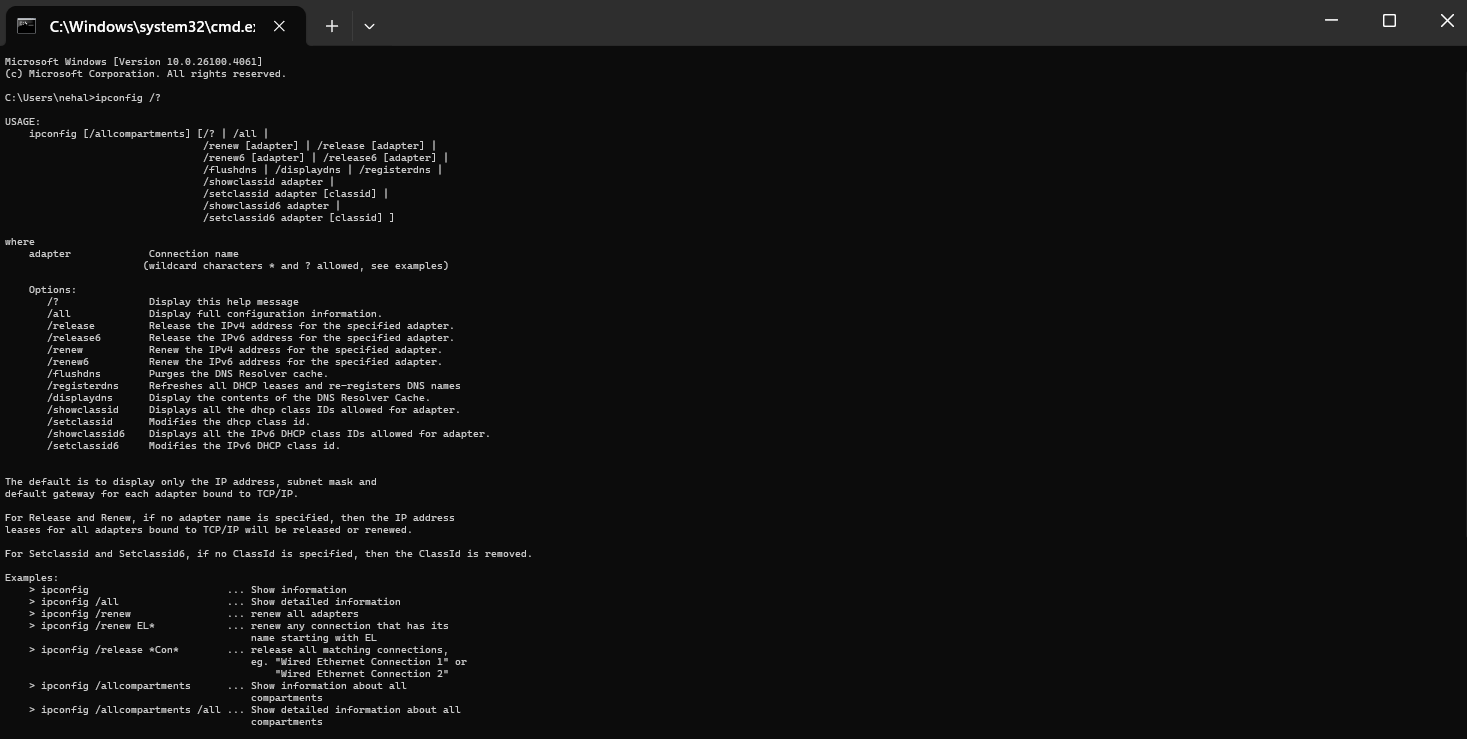
The above example shows all parameters and how to use ipconfig.
Every command you have learned in this guide can be used individually, but the real power of CMD unlocks when you combine commands into a batch script. A batch file is simply a plain text file containing a sequence of CMD commands that runs automatically, one after another, when you double-click it. No coding experience required.
Works on Windows 10 and Windows 11: Batch scripts (.bat files) work identically on both. You can create and run them from Notepad, which comes pre-installed on all versions of Windows.
Learn More with our Bash Cheat Sheet
Both CMD and PowerShell are command-line tools built into Windows, and they look similar at first glance. But under the hood, they are quite different. CMD is the older tool, dating back to the MS-DOS era, and works with simple text commands. PowerShell is a modern scripting environment built on .NET that understands data as objects, not just plain text, which makes it far more powerful for complex automation.
Windows 11 note: In Windows 11, Microsoft replaced CMD as the default shell in the Power User menu (Win + X) with Windows Terminal, which opens PowerShell by default. CMD is still fully available — just search for it or open it as a tab inside Windows Terminal.
| Feature | CMD Command Prompt | PS PowerShell |
| First released | 1987 (MS-DOS era) | 2006 (built on .NET) |
| Output type | Plain text only | Objects (sortable, filterable) |
| Script files | .bat and .cmd files | .ps1 files |
| Scripting power | Basic — sequential commands, simple loops | Full: functions, error handling, conditionals |
| Runs on | Windows only | Windows, macOS, Linux (PowerShell 7+) |
| Learning curve | Low — beginner friendly | Medium: closer to a programming language |
| Default in Win 11 | No (available via search) | Yes (default in Windows Terminal) |
| Best for | Quick tasks, basic fixes, batch scripts | Automation, IT administration, complex scripting |
That's a wrap-up! You have seen a simple black screen, strong white texts(commands), yet the power to control the complete system. CMD is not just an old tool, but is like a powerful weapon, which performs everything from file handling to network fixing and productivity hacks.
Through this blog, we have covered commands from basics to advanced. Other than that are you thinking what can be your next step? You can practice, experiment and can gradually become Windows pro. So, from now you can work like an admin too, not only as a user.
Yes, CMD is still a powerful tool for Windows users, especially for troubleshooting, system tasks, automation, and networking.
Yes, many commands like dir, ping, echo, ipconfig work without admin rights. Yet, for some tasks like sfc /scannow or chkdsk, you will need to run as Administrator.
Yes, CMD (Command Prompt) is a built-in tool in Windows. It is a command-line interface that lets users perform a variety of system-level tasks just by typing commands.
Yes, beginners can use CMD to learn basic system operations and understand how Windows works internally.
Yes, most commands are safe when used correctly. You should be careful with commands that delete files or change system settings.
Press the Windows key, type cmd, right-click on Command Prompt in the results, and select Run as Administrator. On Windows 11 you can also press Win + X and open Terminal (Admin), then select Command Prompt from the dropdown tab. Admin rights are required for commands like sfc /scannow, chkdsk, diskpart, and netsh.
Explore Our Trending Articles-